Ten Minutes in Settings Now Beats a Panicked Call Later: Setting Up Emergency SOS
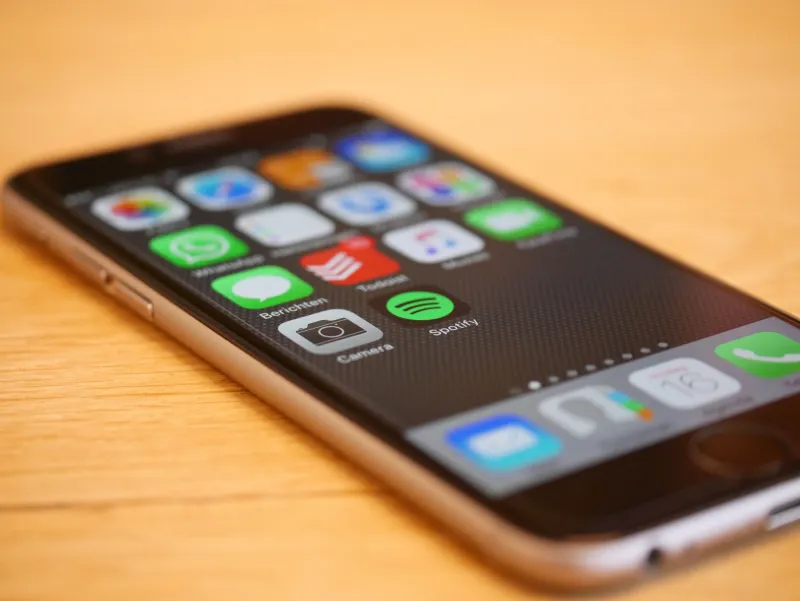
Photo: smartphone emergency SOS settings screen close-up hand, via images.pexels.com
Most phone setups are about convenience. Face unlock, notifications, a wallpaper you like. Emergency SOS is different. It is the part of the phone you hope never runs. The problem is that the features only work if you configure them before the bad day, and most people never open that menu.
This is not a fear campaign. It is a ten-minute software tutorial. You will set up emergency calling, add medical details that first responders can see from the lock screen, decide who gets notified, and check the features that can call for help after a crash or when you have no cell signal. Do it once, then put it out of your mind.
What Emergency SOS actually does
On both iPhone and Android, Emergency SOS is a shortcut that starts a countdown and calls emergency services. On iPhone, you can trigger it by pressing and holding the side button and either volume button, or by pressing the side button five times quickly, depending on your settings. On Android, the gesture varies by manufacturer, but it is often five presses of the power button or a rapid tap sequence.
The call is only one part. When the call connects, your phone can share your location with dispatchers. It can send a text message to your emergency contacts with your location. Your Medical ID can appear on the lock screen so a responder or a bystander can see allergies, medications, and who to call. Crash detection can place a call automatically if the phone detects a severe car crash and you do not respond. Satellite messaging on supported phones can send a text to emergency services when there is no cellular coverage. Each piece is useful on its own. Together they cover a lot of bad scenarios.
iPhone: the ten-minute path
Open Settings and scroll to Emergency SOS. Review the two calling options. Call with Hold and Release requires you to hold the buttons and then release to call. Call with 5 Presses requires five quick presses. Pick the one you are less likely to trigger by accident, then learn how to cancel the countdown. On most iPhones, you can stop the call by releasing the buttons or tapping Cancel before the countdown ends.
Next, open the Health app and tap your profile picture. Go to Medical ID and tap Edit. Add your date of birth, medical conditions, allergies, medications, and blood type. Turn on Show When Locked so the information is available without your passcode. Add at least one emergency contact. Turn on Share During Emergency Call so that contact is notified when you call emergency services. Do not skip the medication list. Blood thinners, insulin, seizure medications, and heart drugs are exactly what a responder may need to know.
While you are in Settings, look at Crash Detection. On supported iPhones, it is under Emergency SOS and is usually on by default. Leave it on unless you have a specific reason to turn it off. If your phone supports satellite messaging, open the Satellite section and run the demo. The demo shows you where to point the phone and what the screen looks like. That is much better than learning it in the rain on a trail.
Android: where the settings hide
The menu name depends on your phone. On many Android devices, open Settings and search for Safety and emergency or Emergency SOS. On Pixel phones, it is under Safety and emergency. On Samsung phones, it may be under Safety and emergency as well. Turn on Emergency SOS and review the trigger. Add emergency contacts. Add medical information and turn on the option to show it on the lock screen.
Check whether your phone supports car crash detection. If it does, decide whether you want it on. It can call emergency services after a severe crash, but it can also trigger during a bad pothole or a dropped phone. The feature is designed to ask you if you are okay before it calls. Learn what that prompt looks like so you do not dismiss it by reflex.
Android phones with satellite messaging will have a separate setup flow, usually in the safety settings or the messaging app. It is not available on every model or carrier. If you see it, run the practice demo. If you do not see it, do not assume you have it.
Avoid false alarms without defeating the feature
A feature that calls 911 every time you squat to tie a shoe is not helpful. The fix is not to turn everything off. The fix is to choose a deliberate gesture and practice canceling it. Know whether your phone calls on release or after five presses. Know where the cancel button appears. Keep the phone screen facing your leg or away from your body if the power button is easy to bump.
Tell the people in your household what your emergency contacts will receive. If your phone sends a location text to your partner during a real emergency, they should know it is not a butt dial. If you have an old phone that you use as a spare, check its emergency settings too. A retired phone can still call 911, and it may still have outdated medical information.
Make the information useful
A Medical ID with no medications and no contacts is just a birthday. Update it after any new diagnosis, medication, or surgery. Add a contact who will actually answer. If you wear a medical alert bracelet, make sure the phone information matches it. If you are a caregiver for a parent or a child, set up their Medical ID too.
The final step is the least technical: tell one person where your information lives. A sibling, a spouse, a roommate. The phone can only help if someone knows to look at the lock screen. Ten minutes now is a small price for a much better worst day.