Before You Buy a New Laptop, Try These Free Fixes That Actually Work
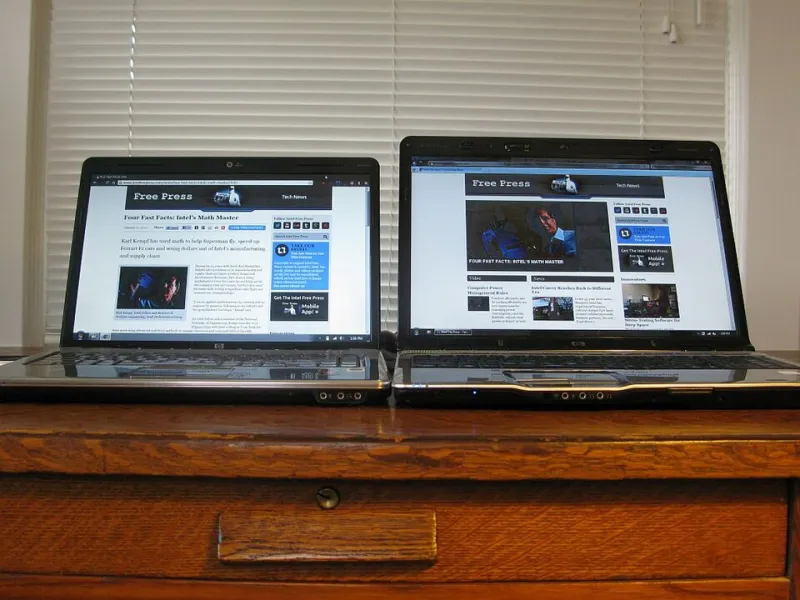
Photo: Intel Free Press, CC BY-SA 2.0, via Wikimedia Commons
Laptop prices are getting harder to swallow. A mid-range machine that cost $700 a few years ago now routinely pushes past $1,000, and tariffs and supply chain costs aren't helping. Before you shell out for new hardware, it's worth spending an afternoon on the machine you already own. You'd be surprised how much of that 'slow laptop' feeling is fixable software bloat, not dying hardware.
Here's our practical playbook, tested on everything from a 2016 MacBook Pro to a well-loved Lenovo ThinkPad.
Start With a Startup Cleanup
The single biggest speed killer on older laptops is everything that launches when you boot up. Every Spotify helper, cloud sync client, and printer utility you've installed over the years piles on.
On Windows 11: Hit Ctrl+Shift+Esc to open Task Manager, then click the Startup apps tab. Sort by 'Startup impact' and disable anything you don't need the moment you log in. Be ruthless with things like game launchers and update helpers — you can still open them manually when needed.
On macOS: Go to System Settings > General > Login Items & Extensions. Turn off login items and check 'Allow in the Background' for apps silently running daemons.
Reboot afterward. On our test ThinkPad, boot time dropped from nearly three minutes to under 40 seconds.
Swap Heavy Apps for Lightweight Alternatives
Some programs are resource hogs by design. Replacing them is free and takes minutes:
- Replace Chrome with Edge, Brave, or Firefox. Chrome's RAM appetite is legendary. On a machine with 8GB of memory, the difference is night and day.
- Ditch Adobe Reader for the browser's built-in PDF viewer or SumatraPDF on Windows.
- Use LibreOffice instead of a full Microsoft 365 desktop install if you mostly write documents and spreadsheets.
- Try Photos app or IrfanView instead of heavyweight photo editors for quick edits.
Use the Free Optimization Tools Already on Your Machine
Both platforms ship with tools most people never open.
Windows: Run Storage Sense (Settings > System > Storage) to automatically clear temp files and empty the recycle bin. Then use the built-in Defragment and Optimize Drives tool — even on SSDs, the TRIM optimization pass helps. Windows Security's full scan is also worth running once; malware is still a top cause of mystery slowdowns.
Mac: Open the Storage management pane (About This Mac > More Info > Storage Settings) and review Recommendations. Emptying 'System Data' bloat alone can free up 20–50GB on older Macs.
Update Everything, Including the BIOS
Outdated drivers and firmware cause real performance problems. Windows Update handles most drivers, but check your laptop maker's support page for BIOS updates — Lenovo, Dell, and HP all push firmware fixes that improve battery management and thermals. Mac users get this automatically through macOS updates, so being a couple of versions behind costs you.
Give Your Browser a Reset
If your laptop only feels slow online, the browser is usually the culprit. Remove extensions you don't use, clear cached files, and limit how many tabs you keep pinned. A tab management extension like OneTab costs nothing and can cut memory use dramatically.
Trim Visual Effects
Right-click the Start button > System > Advanced system settings > Performance Settings on Windows and choose 'Adjust for best performance.' On a decade-old machine, losing window animations is a trade worth making.
The Math: Fix vs. Buy
Let's compare. A reasonable new Windows laptop in 2025 runs $800–$1,200, and a new MacBook Air starts around $999. The free route costs you roughly two hours and zero dollars, and typically buys a 3–5 year-old laptop another two years of comfortable use.
Even if you eventually upgrade, the cleanup is worth doing — a fast, clean laptop sells for noticeably more on Facebook Marketplace or Swappa than a bloated one.
When It's Genuinely Time to Move On
Software can't fix everything. If your machine has 4GB of RAM, a spinning hard drive, and no longer receives security updates, no amount of tuning will save it. But if your laptop has an SSD and at least 8GB of memory, it's very likely salvageable.
Try the free fixes first. Your wallet will thank you — and so will the landfill.