Log Into Your Router Once, Thank Yourself Forever: 8 Settings Worth Flipping
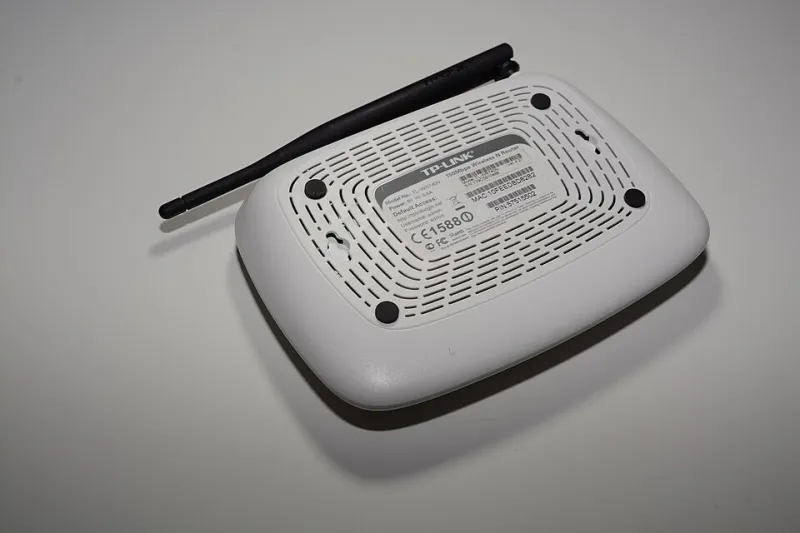
Photo: Hayden Schiff, CC BY 4.0, via Wikimedia Commons
The Dashboard You Set Up Once and Forgot
Think about it: you probably logged into your router exactly one time — during setup, maybe with help from your internet provider's tech support — and never went back. That's a little like buying a car and never touching anything but the gas pedal and the radio.
Your router's admin panel is where the real controls live. And no, you don't need to be a network engineer to use it. Most of the useful stuff is sitting right there in plain English, waiting for someone to click it.
First, Get In
Open a browser and type one of these into the address bar:
- TP-Link:
tplinkwifi.netor192.168.0.1 - Netgear:
routerlogin.netor192.168.1.1 - Eero: You'll use the Eero mobile app instead of a browser
- Most others: Try
192.168.1.1or192.168.0.1
If you never changed the login, the default password is probably printed on a sticker on the bottom of the router — and honestly, changing that default password should be the first thing you do today. It's the single most common way strangers end up on home networks.
Fair warning: every brand names things slightly differently, so treat the labels below as a treasure map, not exact directions. And if a setting change kicks you offline for 30 seconds, that's normal — don't panic and unplug anything.
1. Quality of Service (QoS): The Peacemaker
Ever had your video call turn into a slideshow because someone upstairs started a 4K download? QoS fixes that. It lets you tell the router which traffic matters most.
In your admin panel, look for QoS or Traffic Management. On TP-Link, it's often under Advanced → QoS. Netgear hides it under Advanced → Setup → QoS Setup.
Prioritize your work laptop or your video conferencing apps, and let everything else wait its turn. On Eero, this shows up as "Optimize for Conferencing" in the app — one toggle, done.
2. Guest Network: Your Digital Front Door
When a friend visits and asks for your Wi-Fi, handing over your main password means they now know the key to everything — including any network-attached storage or smart cameras you own.
A guest network gives visitors internet access while walling them off from your devices. Look for Guest Network in the wireless settings, turn it on, and make sure "Allow guests to access my local network" (or similar) is unchecked. That isolation checkbox is the whole point.
3. DNS Override: A Quiet Speed and Safety Boost
Your router uses your ISP's DNS servers by default, and they can be slow or, in some cases, filtered. Switching to a public DNS like Cloudflare (1.1.1.1) or Google (8.8.8.8) can noticeably speed up page loads and, with services like Cloudflare's Family option, automatically block malware sites for every device in the house.
Find DNS Settings or Internet Setup → DNS and enter the addresses manually. It takes two minutes and affects everything connected to your network at once — no need to touch each device individually.
4. Firmware Updates: The Boring Setting That Matters Most
Router firmware updates patch real security holes, and unlike your phone, most routers won't nag you. Some modern models (newer Eeros, many TP-Link units) auto-update if you enable it — so find the Firmware Update page and turn on automatic updates if it's offered. If it's not, put a recurring reminder on your calendar to check quarterly. Yes, it's that important.
5. WPA3 (or at Least WPA2-AES): Dump the Old Encryption
Dig into your wireless security settings. If your router is still set to WEP or WPA — encryption standards older than the iPhone — you're essentially using a screen door for a lock. Choose WPA3 if available, or WPA2/WPA3 mixed mode so older devices still connect. One caveat: some ancient gadgets (that 2012 Blu-ray player, we're looking at you) may not cooperate with WPA3, which is why the mixed mode exists.
6. Remote Management: Off, Please
This setting lets you log into your router from anywhere in the world. Convenient for the manufacturer's support line; convenient for attackers too. Unless you genuinely use it, find Remote Management or Remote Access and switch it off. Local-only administration is the safer default for almost everyone.
7. Parental Controls and Pausing: More Powerful Than You Think
Modern router dashboards include per-device controls that go way beyond a bedtime shutdown. Netgear's Smart Parental Controls and Eero's Family Profiles let you pause the internet on specific devices (dinner time, kids), filter content categories, and set schedules.
Even budget TP-Link routers include basic Access Control with time limits. If you've been paying for a parental-control subscription app, check what your router already does for free.
8. Channel Selection: The Fix for Apartment Interference
Living in a building where you can see a dozen neighbors' networks in your Wi-Fi list? They're all shouting over each other. In your wireless settings, look for Channel. On 2.4 GHz, channels 1, 6, and 11 don't overlap — picking the one your neighbors aren't using can genuinely help. Free apps like Wi-Fi Analyzer (Android) or the built-in diagnostics on a Mac (hold Option while clicking the Wi-Fi icon) show you which channels are crowded.
A Ten-Minute Project With Lasting Payoff
You don't need to tackle all eight in one sitting. Change the admin password and firmware settings today, then knock out QoS and the guest network this weekend. Half an hour of clicking beats hours of blaming your internet provider for problems your router could have fixed all along.