SIM Swappers Love Your Text Codes: Ditch SMS 2FA Before They Do
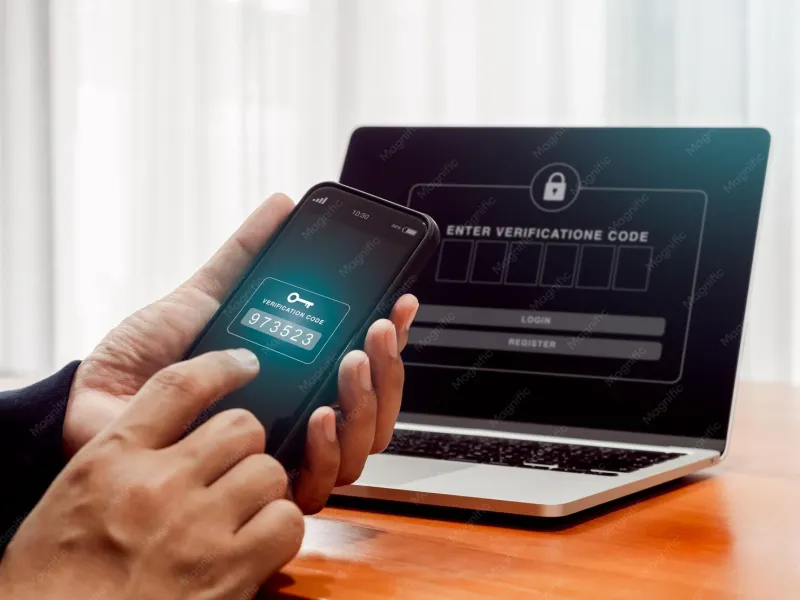
Photo: smartphone two-factor authentication security code screen close up, via img.freepik.com
There's a particular kind of dread that comes with realizing your phone suddenly has no signal. No bars, no LTE, nothing — while everyone else's phones work just fine. Sometimes it's a tower outage. Sometimes it's something much worse: someone just convinced your carrier to hand your phone number over to a SIM card in their pocket.
If you rely on text messages for two-factor authentication, that moment is how your accounts fall. Let's talk about why SMS codes are the weakest option on the menu, and how to move to something that actually holds up.
Why Text Message Codes Are a Problem
SMS-based two-factor authentication (2FA) works like this: you log in, a code gets texted to your phone, you type it in. The idea is that only someone holding your phone can get in. The flaw is that "holding your phone number" isn't the same thing as "holding your phone."
SIM swapping is the big one. A scammer calls your carrier, poses as you — often armed with personal details scraped from data breaches — and convinces customer service to transfer your number to a new SIM card. The FCC has been cracking down on this because it's become an industry: entire crews specialize in hijacking numbers, then intercepting your 2FA texts to drain bank accounts and take over email. Victims often don't realize anything happened until their phone goes dead and their Instagram starts posting crypto scams.
Carrier shenanigans are a quieter cousin. Even without outright fraud, texts can be intercepted through weaknesses in the global messaging system (SS7), delayed, or routed in ways you'd never know about.
And then there's phishing. A convincing fake login page can capture both your password and the code you just received — SMS codes can be typed in by anyone, which means they can be typed in by a scammer in real time.
None of this means SMS 2FA is worthless. It's still better than a password alone. But if you can pick a stronger option, you absolutely should.
Upgrade #1: Authenticator Apps
Authenticator apps like Google Authenticator, Microsoft Authenticator, and Authy generate codes on your device — no carrier, no network, no interception point. The codes rotate every 30 seconds and are tied to a secret key that never leaves your phone.
The trade-off: if you lose your phone, you lose your codes unless you've backed them up. So set them up with backup codes stored somewhere safe (a printed copy in a drawer works, honestly).
Setting up an authenticator app, account by account
Google:
- Go to your Google Account → Security → 2-Step Verification.
- Choose "Authenticator app" (you may need to scroll or click "Show more options").
- Scan the QR code with Google Authenticator, Microsoft Authenticator, or Authy.
- Enter the 6-digit code it shows to confirm, then download your backup codes.
Apple ID:
- On your iPhone, go to Settings → [your name] → Sign-In & Security → Two-Factor Authentication.
- Apple's default is codes delivered to your trusted devices, which is already better than SMS. For a full authenticator app, tap "Set Up Verification Code" and choose to add it to your wallet or copy it into a third-party app.
Microsoft:
- Visit account.microsoft.com → Security → Advanced security options.
- Under "Add a new way to sign in or verify," pick "Use an app."
- Scan the QR code with Microsoft Authenticator (or any compatible app), approve the test notification, and you're set.
Once each account is set up, go back and remove SMS as a fallback if the service allows it. Leaving it enabled keeps the back door unlocked.
Upgrade #2: Passkeys (The Best Option Yet)
Passkeys are the newest and strongest option. Instead of a shared secret that can be phished, a passkey is a cryptographic key pair: the public half lives with the website, the private half stays locked inside your device and requires your face, fingerprint, or PIN. There's no code to intercept, and a phishing site can't trick your device into handing it over — your device simply won't produce it for the wrong site.
Google, Apple, and Microsoft all support passkeys now, and most major US banks and services are rolling them out. Wherever you see a "passkey" option in your security settings, take it.
- Google: Security → 2-Step Verification → Passkeys → Create one. Your fingerprint or face unlocks it.
- Apple: Your Apple ID already uses device-based verification, and Safari lets you create passkeys for websites that store them in iCloud Keychain, synced across your iPhone, iPad, and Mac.
- Microsoft: Advanced security options → Add a new way to sign in → Face, fingerprint, PIN, or security key.
One practical note: passkeys sync through iCloud Keychain, Google Password Manager, or similar. Make sure you've got recovery methods on those accounts — a second trusted device or a recovery contact — so you're not locked out if a laptop dies.
When SMS Is Your Only Option: A Hardening Checklist
Some services — plenty of banks, some government portals, older work accounts — only offer text-based codes. You can't eliminate the risk, but you can shrink it:
- Add a carrier account PIN or passcode. Every major US carrier (Verizon, AT&T, T-Mobile) lets you set a numeric passcode or port-out PIN that must be provided before any account change. Set one today — this is the single most effective step.
- Ask about a port-out freeze or number lock. Most carriers offer one, sometimes buried in app settings.
- Use an alternate number. A Google Voice or VoIP number used only for 2FA keeps your main line out of the crosshairs (check whether the service accepts VoIP numbers first).
- Never share codes. No legitimate company will text you a code and then ask you to read it back. That's always a scam.
- Watch for the dead-signal warning sign. If your phone loses service unexpectedly, contact your carrier immediately — from a different phone or in person.
The Two-Minute Version
SMS codes were a good first draft of account security, but scammers have spent a decade learning to game them. Authenticator apps close the interception hole, and passkeys close the phishing hole entirely. Set a carrier PIN, move your biggest accounts — email first, since it's the recovery key to everything else — to an app or passkey, and stash your backup codes somewhere you'll actually find them.
Your future self, holding a phone that still has signal, will be grateful.