Give Your Houseguests the Slow Lane: A Better Way to Set Up Guest Wi-Fi

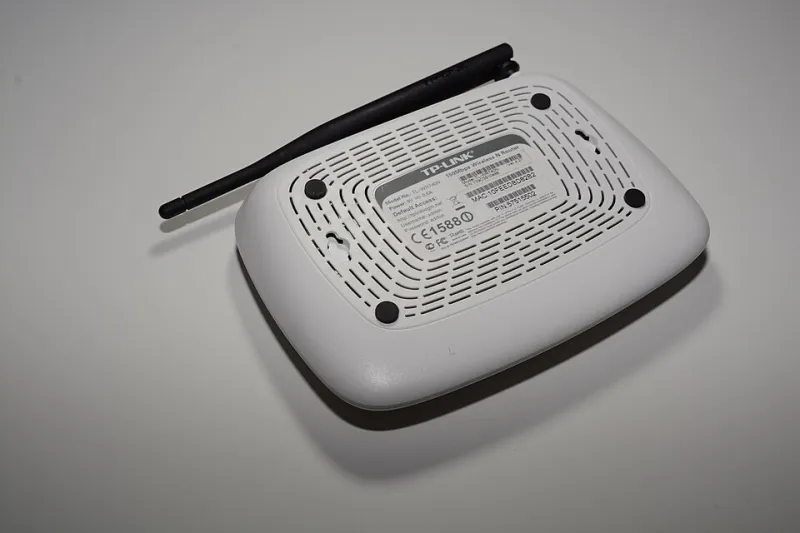
Photo: Tamanoeconomico, CC BY-SA 4.0, via Wikimedia Commons
When friends come over and ask for the Wi-Fi password, most of us hand over the same one we use for our bank account, our work laptop, and the baby monitor. It feels polite. It's also a little like giving a houseguest a key to every room in the house — including the one with the safe.
A guest network fixes that, and your router almost certainly supports one. The catch is that the default setup is often so lax it barely qualifies as a feature. Let's fix that.
Why Bother Separating Traffic at All?
Two reasons, and they matter even if you trust your guests completely.
First, devices are messy. A friend's phone might have malware riding along, quietly scanning for other devices on the network — a technique used to attack things like routers and network-attached storage. If that phone is on your main network, it can see your printer, your laptop, everything.
Second, your smart gadgets are the bigger problem. That bargain-priced security camera or smart plug probably doesn't get regular security updates. Many IoT devices phone home to overseas servers and are notorious for sloppy security. Keeping them quarantined on their own network means if one gets compromised, the attacker doesn't get a map of your entire home.
Finding the Guest Network Setting
Log into your router's admin page — usually by typing something like 192.168.1.1 or 192.168.0.1 into a browser. If you never changed the admin password, do that first; it's the single most important setting on the device.
Look for a section called "Guest Network," "Guest Zone," or "Guest Access." Most routers from TP-Link, ASUS, Netgear, and Eero support this. Mesh systems often hide it under a "Networks" or "Family" tab.
Once you find it, here's what actually matters:
The Four Settings That Do the Real Work
1. Client isolation (sometimes called "AP isolation" or "access isolation"). This is the big one. It prevents devices on the guest network from talking to each other — so your guest's laptop can't probe your guest's phone, and neither can reach your main network. If your router only offers one checkbox, make it this one.
2. A different password. Obvious, but worth saying: the guest network should never share a password with your main network. Some routers auto-generate one. Fine. Others let you set it. Pick something easy to say out loud — you'll be dictating it across a kitchen counter.
3. Bandwidth limits. If your router supports quality of service (QoS) on the guest network, cap it. A guest streaming 4K shouldn't be able to starve your work video call. Even a soft limit of 50–60% of your total bandwidth keeps everyone happy.
4. A captive portal, if available. Some routers can show guests a splash page where they tap "I agree" or enter a simple code before connecting. It's a nice touch for frequent hosts, and it means you're not reading passwords aloud all evening.
The Part Nobody Tells You: Put Your Smart Devices There Too
Here's the twist — the guest network isn't just for guests. It's arguably more valuable as a quarantine zone for your gadgets.
Move your smart bulbs, plugs, cameras, doorbell, and TV onto the guest network. They'll still reach the internet (so apps and cloud services keep working), but they can't reach your personal computers.
One caveat: check that everything still works. A few devices — most commonly Chromecast and some smart speaker pairing features — rely on local network discovery and may struggle across networks. If your TV stops responding to your phone, you may need a router that supports mDNS bridging, or you can make an exception for that one device. Also note that if you use HomeKit or Google Home routines, you may need to re-add devices after the move.
A Quick Reality Check
Don't overthink it. A guest network with client isolation and a separate password takes about ten minutes to set up and covers 90% of the risk. You don't need VLANs, a firewall appliance, or a networking degree — though if you catch the bug, that's a fun rabbit hole for another weekend.
The next time someone asks for your Wi-Fi, you'll hand over a password that leads exactly where it should: nowhere near your stuff. That's not bad hosting. That's good manners with a firewall.