The Mystery of the Dead Bedroom Wi-Fi: Tracking Down Your Home's Signal Killers
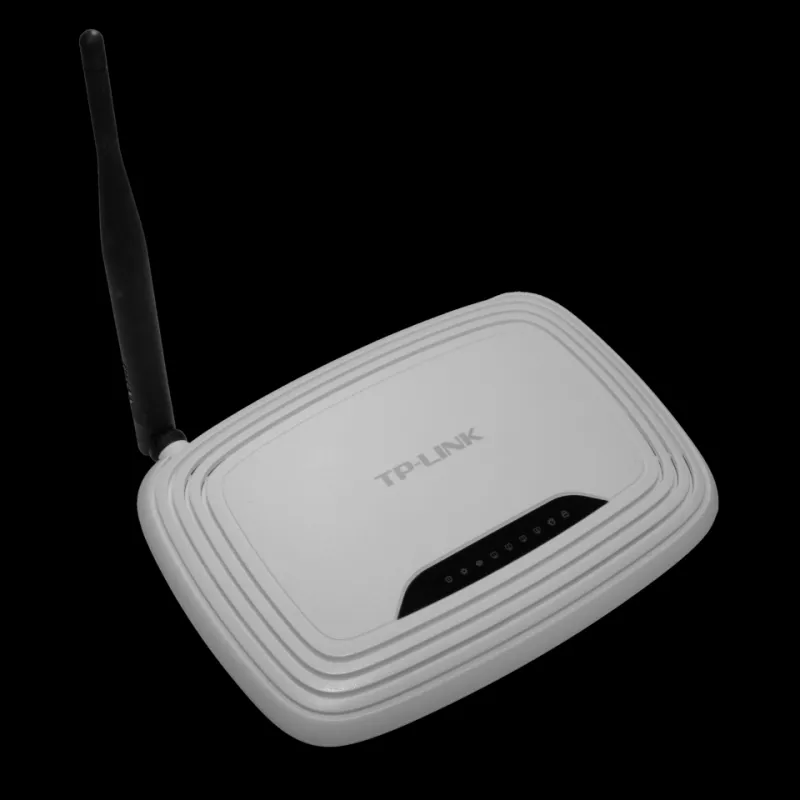
Photo: Hayden Schiff, CC BY 4.0, via Wikimedia Commons
Every house has that one room. Maybe it's the upstairs bedroom, maybe the garage-turned-office, maybe — ironically — the room farthest from where the internet actually enters your home. The bars drop, the video spins, and the video calls freeze at the worst possible moment.
Before you spend $300 on a mesh system, it's worth understanding what's actually going on. Wi-Fi dead zones usually have identifiable causes, and some of them are fixable for free.
Why Signal Dies Between Rooms
Wi-Fi is just radio, and radio hates obstacles. Your router broadcasts in all directions, but every wall, floor, and appliance between it and your device weakens the signal. Here's the rough hierarchy of what stands in the way:
- Drywall and wood: mild attenuation. Usually survivable.
- Brick, plaster with metal lath, and tile: significant loss, especially in older homes common across the Northeast and Midwest.
- Concrete and cinder block: brutal. Basements in particular become signal tombs.
- Metal and water: near-total blockers. More on this in a second.
Distance matters too. A router on one end of a 2,500-square-foot ranch house is asking a lot of a signal that has to cross five walls to reach the far bedroom.
The Kitchen Problem
Here's a fun one: kitchens are among the worst rooms in the house for Wi-Fi, and it's not a coincidence. Your microwave operates at roughly the same 2.4GHz frequency your router uses. Run a microwave while streaming, and you can knock connections offline entirely. Add a refrigerator (big, metal, full of water), a dishwasher, and a metal stove, and you've built an interference obstacle course.
If your router lives in or near the kitchen — a very common spot, since that's often where the internet line comes in — every appliance around it is quietly degrading performance.
Other Household Signal Saboteurs
Beyond the kitchen, keep an eye out for:
- Aquariums. Water absorbs 2.4GHz signal remarkably well. That beautiful 75-gallon tank might be the reason the living room is slow.
- Mirrors and large TVs. The metallic backing on mirrors reflects signal. Flat-screen TVs can block a router hidden behind them.
- Baby monitors and Bluetooth devices. They crowd the same frequencies, especially in dense apartment buildings where every neighbor's network competes for airspace.
- Mesh Wi-Fi systems piggybacking on each other. Ironically, too many overlapping networks in a building can cause congestion even when each one is individually fine.
Free Diagnostics to Run First
Before opening your wallet, spend an evening on these:
1. Map your speeds. Run a speed test (Fast.com or Speedtest.net) in every room at the same time of day. Write the numbers down. You'll quickly see whether the problem is one specific room or a general gradient that worsens with distance.
2. Check both bands. Most modern routers broadcast two networks: a 2.4GHz one (longer range, slower, more interference-prone) and a 5GHz one (faster, shorter range). If your far bedroom only does well on 2.4GHz, you've got a range problem. If it's bad on both, you've got an obstruction problem.
3. Test the router's location. Move the router temporarily — even a few feet off the ground, away from the TV cabinet and away from metal — and re-test. Getting a router off the floor and out of a cabinet can genuinely change coverage.
4. Look at channel congestion. Free apps like Wi-Fi Analyzer (Android) or the built-in Wireless Diagnostics on Mac show how many neighboring networks are fighting over your channel. Switching your router to a less crowded channel in its settings is free and sometimes dramatic.
5. Rule out the device itself. If your phone is slow everywhere, the problem might be the phone — not the network. Test with a second device before blaming the router.
When New Hardware Is Actually Worth It
If you've done the diagnostics and the signal genuinely can't reach, hardware is the answer — but pick the right tool:
- Mesh systems (like Eero, Google Nest Wifi, or TP-Link Deco) are the best fix for multi-story homes and sprawling floor plans. Multiple units blanket the house in one seamless network. Worth it for homes over roughly 2,000 square feet or with tricky layouts.
- Extenders are cheaper but come with a real trade-off: most halve your available bandwidth because they spend half their time talking to the router and half to your devices. Fine for a single dead room, disappointing as a whole-house fix.
- Wired access points — running an Ethernet cable to a second access point — are the gold standard if you're able to run cable. Boring, reliable, fast.
- A router upgrade alone sometimes helps if yours is more than five years old, since newer standards (Wi-Fi 6 and beyond) handle modern device counts far better.
The Bottom Line
Dead zones feel mysterious, but they almost never are. Nine times out of ten, the culprit is a combination of distance, an obstruction you can identify, and a router shoved into the worst possible corner of the house. Run the free tests first, relocate the router second, and only then start shopping. Your future self — the one not streaming a pixelated buffer wheel in the bedroom — will be glad you did.