The Great Extension Purge: 7 Browser Add-Ons Bleeding Your Laptop Dry
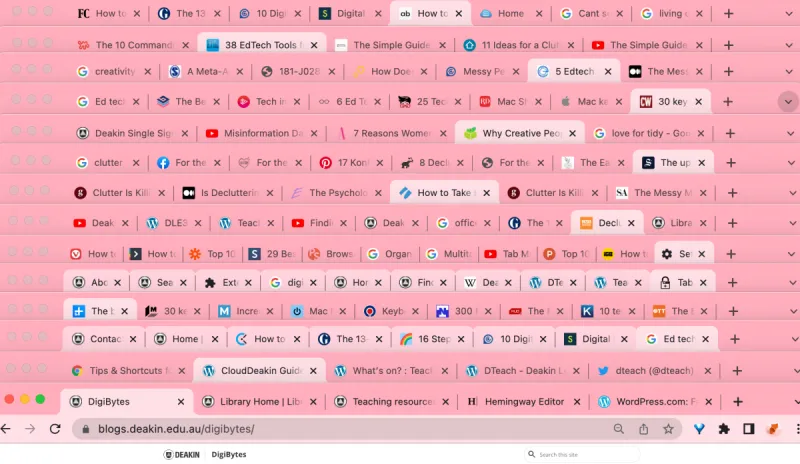
Photo: cluttered web browser tabs on laptop screen, via blogs.deakin.edu.au
A friend of ours swore her three-year-old laptop was dying. Boot took forever, tabs crashed, the fan screamed whenever Chrome was open. Then she checked her extensions tab: 23 add-ons, some she had zero memory of installing. After a ten-minute cleanup, the machine felt new again.
We decided to test this properly. Using a mid-range laptop — the kind of Ryzen 5 / 8GB RAM machine millions of Americans bought during the pandemic — we measured memory use, startup time, and battery drain with a typical extension loadout, then again after removing the worst offenders. The difference was not subtle.
How We Tested
Baseline: fresh Chrome, one tab open. Then we added popular extensions one category at a time, measuring RAM in Task Manager and time-to-first-page after launch. Every number below is the average of three runs.
The Suspects
1. The Coupon Hunters
Those shopping add-ons that promise deals at every checkout are the worst category we tested. One popular one added over 400MB of RAM and injected scripts into every single page you visit — not just shopping pages. And there's a privacy cost: several have faced scrutiny for collecting browsing data. Instead: when you're actually about to buy something, search "[store] coupon code" or use a cash-back site manually. Same savings, zero background drain.
2. The Grammar Police
Real-time grammar checkers are genuinely useful, but they scan everything you type, everywhere, all the time. We measured roughly 250MB of overhead. Instead: keep it disabled by default and activate it only when writing something important — most offer a one-click toggle. Or draft in Google Docs, which has solid built-in suggestions.
3. The Bloated Ad Blockers
Ironically, some of the most popular ad blockers have become the very thing they block: heavy, resource-hungry, and stuffed with "acceptable ads" deals. Our test blocker ate nearly 300MB. Instead: uBlock Origin does the same job at a fraction of the footprint, and it's open source.
4. Screenshot and "Productivity" Tools
Full-page capture tools and clipboard managers keep constant hooks into every page for that one time a month you need them. Instead: use your OS. Windows has Snipping Tool (Win+Shift+S); Macs have Cmd+Shift+4. Chrome and Edge both have built-in full-page screenshot options in the dev tools.
5. Weather, News, and Dashboard Widgets
A weather extension that shows a popup on hover does not need to run persistent background scripts. Ours idled at 80MB around the clock. Instead: bookmark weather.gov or pin a weather tab. Same info, no tax.
6. Video Downloaders
These regularly top "most removed for malware" lists, and the legit ones still chew memory analyzing every page for embedded video. Instead: if you need a video offline occasionally, use a dedicated desktop tool on demand rather than an always-on extension.
7. Password "Autofill" Extensions
Hear us out — a password manager is essential. But if you use one, having a browser's own autofill plus a standalone extension plus a second manager is triple redundancy you're paying for in RAM. Instead: pick one manager, disable the browser's built-in version, and delete the rest.
The Numbers
With all seven categories installed: 1.4GB of RAM just for extensions, a 9-second launch time, and roughly 40 extra minutes of battery drain per charge. After the purge, using only uBlock Origin and one password manager: under 300MB and a 4-second launch. On an 8GB machine, that's the difference between "this laptop is dying" and "this laptop is fine."
Do Your Own Two-Minute Audit
- Open your browser's extensions page (type
chrome://extensionsoredge://extensionsin the address bar). - For each one, ask: have I used this in the past month?
- Toggle off anything questionable first — if you don't miss it in a week, delete it.
- Click "Details" on survivors and disable "Allow in incognito" unless you truly need it.
- Restart the browser and check Task Manager (Shift+Esc in Chrome) to see what's left.
Your laptop probably isn't dying. It's just hoarding. Clean house and enjoy the speed bump.